For the Impatient
When you launch the Crown Editor for the first time, Crown automatically creates and opens a temporary project. This lets you explore the graphical interface immediately without any additional setup.
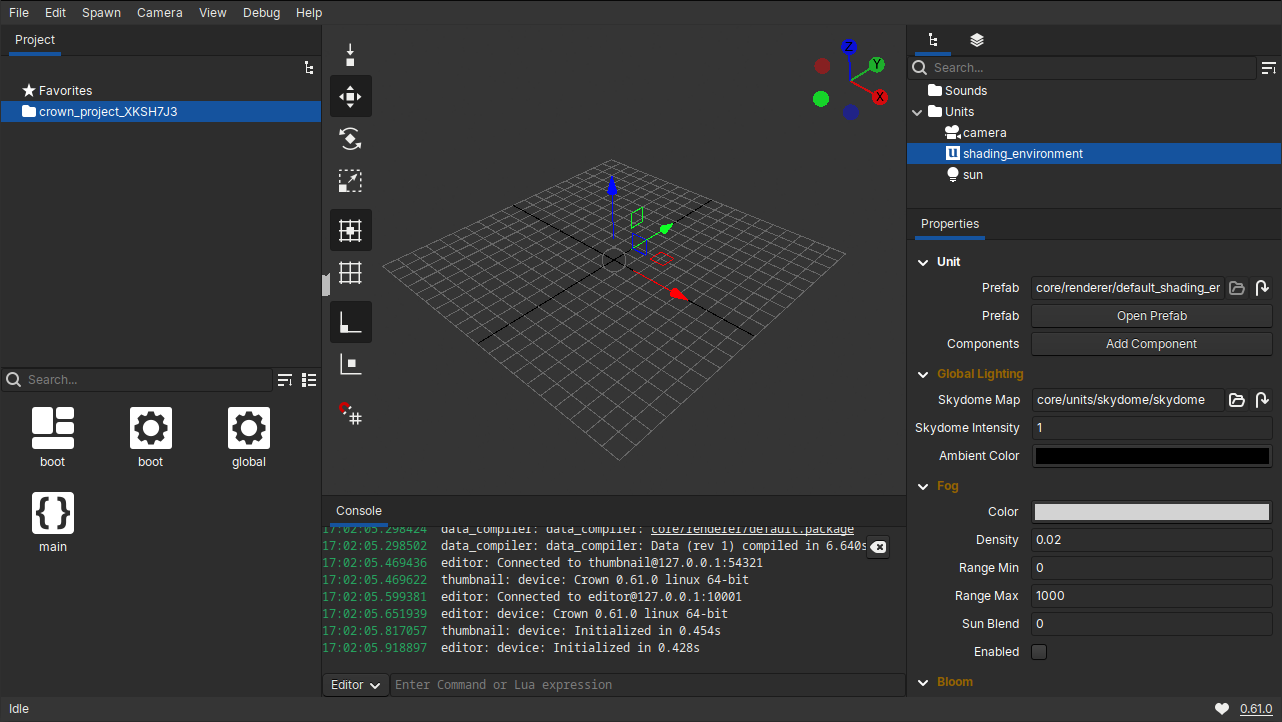
The temporary project created on first launch.
You can now jump straight into the Editor overview to explore its features, or close the temporary project and create your own, optionally starting from a template.
To close the temporary project, choose File -> Close Project:
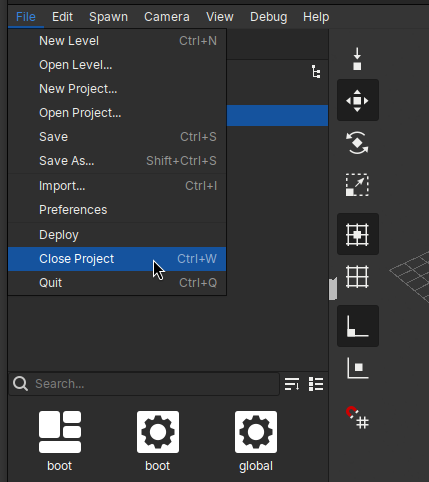
Closing the temporary project from the File menu.
You will be asked whether to save or discard the temporary project. Choose
Save to keep your work (the project will then appear in the Projects List),
or Close without Saving to discard it. Closing the temporary project takes
you to the Projects List, where you can create a new project.
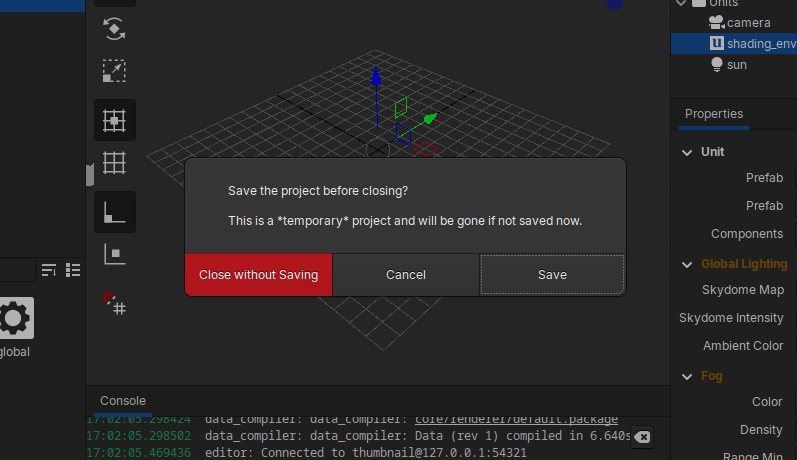
Confirmation dialog asking whether to save the temporary project.
Tip: Save the temporary project before closing if you want to continue working on it. If you were only experimenting, you can safely discard it and start a new project from a template later.