Importing Sprites
Crown includes a dedicated spritesheet importer with slicing capabilities that let you quickly create Units from images containing sprites arranged in rows and columns. When importing a new spritesheet, it is recommended to create a dedicated target folder first. The importer generates multiple output files (sprites, units, materials etc.), so keeping them together makes the project easier to manage.
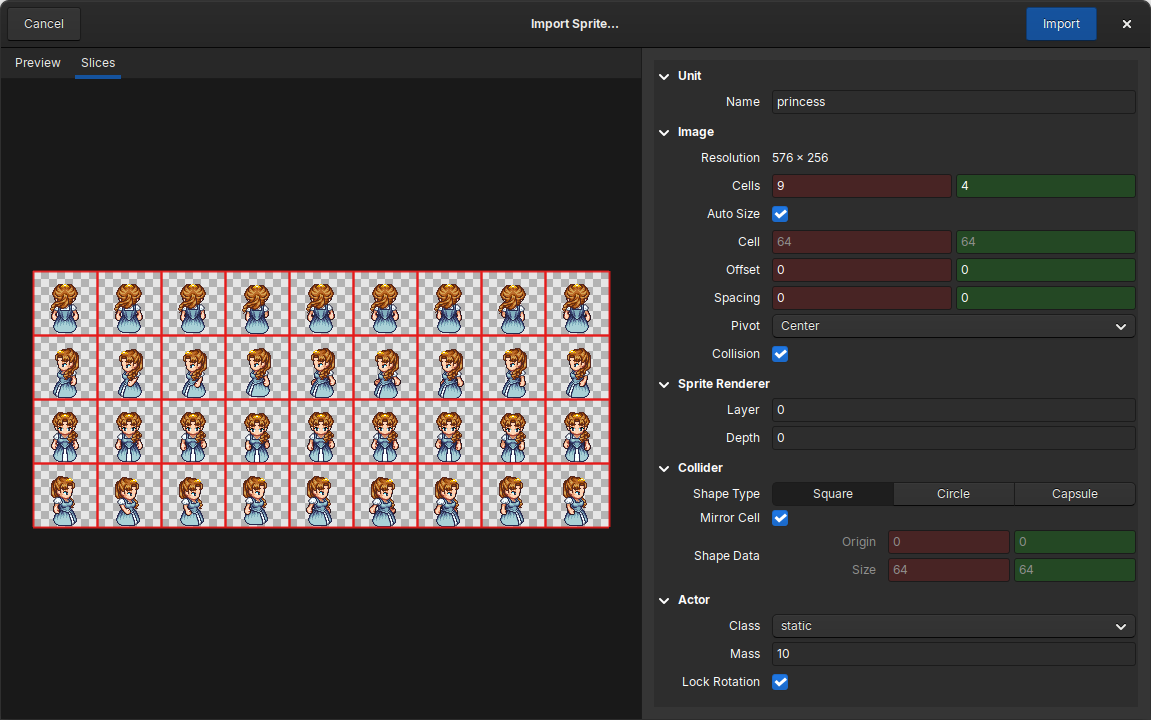
The Sprite Importer window.
Sprite Importer overview
The importer window is split into a preview area, a slicing view, and a panel with import options:
The top-left corner contains two tabs:
Preview: shows how the sprite will look after import.Slices: displays a grid view to help you choose slicing parameters.
The panel on the right holds slicing parameters and options for rendering and phyisics. Most of these settings can be changed after import, so you do not need to get everything perfect on the first pass.
Slicing the spritesheet
Slicing defines how the image is split into individual sprite cells.
Cells: set the number of columns (X) and rows (Y). This creates an X by Y grid of equally sized cells.Auto Size: when checked, Crown computes the cell size automatically. Uncheck it to enter cell width and height manually.Offset: shift the entire grid horizontally and vertically when cells are not aligned to the image origin.Spacing: add horizontal and vertical spacing between cells when the spritesheet contains padding.
Adjust the grid in the Slices tab and verify results in the Preview
tab before importing.
Pivot (sprite origin)
Choose the sprite origin with the Pivot combobox. The preview area shows
the pivot position so you can pick the point that makes placement and
rotation easier.
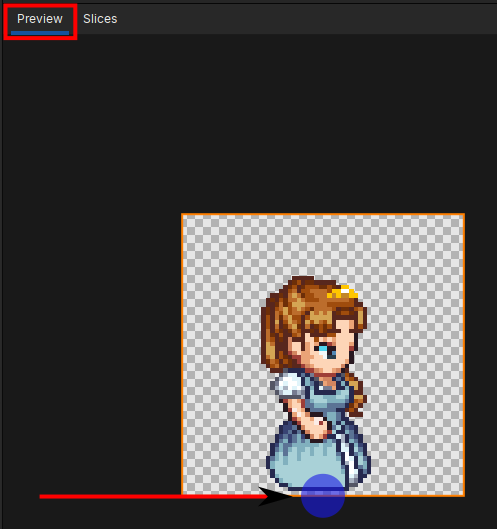
The sprite pivot in the preview area.
Collision and physics
By default Crown generates a collider and physics parameters every time you
import a sprite. Disable collision generation by unchecking the Collision
option if you only need a visual unit.
Crown supports three collider shapes for sprites:
SquareCircleCapsule
Use the Shape Type buttons to switch between them. By default the collider
is fitted to the cell rectangle determined during slicing. To customize the
collider:
Uncheck
Mirror Cellto stop the collider from mirroring the cell bounds.Edit
Shape Datato input collider sizes manually.