Editor overview
The Level Editor is the first editor you see when you start Crown and the primary workspace for most project tasks. You use it to create and edit levels, browse project files, and access specialized editors and tools. It can also launch your game, hot-reload resources, and communicate with the running game through the Console.
Opening a Project starts resource compilation automatically. After Crown finishes compiling the resources, it launches the Level Editor, which should look similar to the following image:
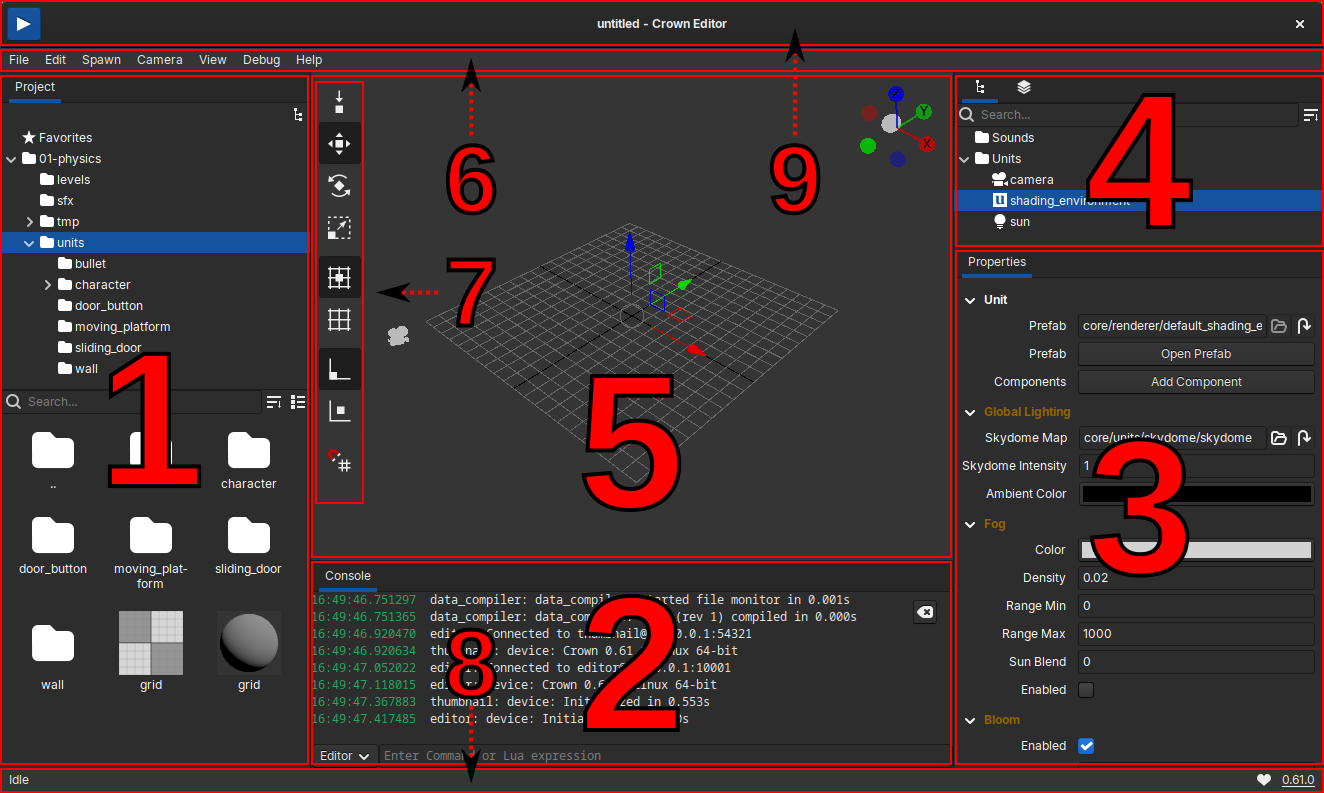
The Level Editor interface in its default configuration.
The Level Editor interface consists of several panels:
Number |
Name |
What it shows |
|---|---|---|
1 |
The current project’s contents. |
|
2 |
Messages from the Level Editor, the Game and other Runtimes. |
|
3 |
The properties of the currently selected object. |
|
4 |
A hierarchical view of all the objects in the Level. |
|
5 |
The Level being edited. |
|
6 |
Menubar |
Common commands for editing / debugging / opening editors etc. |
7 |
Toolbar |
Tools and common options for editing. |
8 |
Statusbar |
Contextual info and small self-contained messages. |
9 |
Titlebar |
Start/Stop Level button, current level name and edit status. |
Layout customization
Most panels are optional and can be toggled from the View menu in the
Menubar.
Press Ctrl+` to show or hide the Console. When the Console is visible, press
the same shortcut to move focus to the Command Bar.
Running the game
Press F5 to play the currently edited level. Crown saves a copy of the
level you are editing and launches it in a separate window. When the level is
running, the Console automatically connects to the game’s runtime and
switches to communicate with it.
To stop the playtest, close the game window or press the Stop Level button on the Titlebar. If the runtime takes too long to stop, it will be forcibly terminated. At exit the Console will switch back to communicating with the editor’s runtime.
To run the complete game, choose Debug -> Run Game from the Menubar. Crown
then launches the game as it would appear to an end user.